



If you use Showit, whether you’re a business owner, designer, coach, or website manager, 2025 brought major updates that affect how you build, edit, and optimize your website. I think we can speak for the entire Showit user population in saying: these were some of the best Showit updates we’ve seen in the past few years!
From real buttons to site-wide integrations and Showit beta-launching on Safari, this guide covers everything you may have missed this year and explains why these changes matter for your Showit site, traffic growth, and SEO.
Let’s unpack all the 2025 Showit updates you need to know.
Table of Contents
What Is Showit & Why It’s One of the Best Website Builders for SEO
If you have not heard of Showit or haven’t used it yet, here is a quick description of the platform! Showit is a drag-and-drop website builder designed for creatives, entrepreneurs, and business owners who want total design freedom without needing to write code (though, and you will see later in this blog, that code can come in handy quite a bit). Unlike other platforms, Showit allows you to place elements exactly where you want, customize both mobile and desktop layouts separately, and integrate a WordPress blog (on the advanced blog plan) for powerful content marketing and SEO tools.
With Showit, you can:
- Complete control of your mobile and desktop design
- Complete blogging and SEO uses, with the use of WordPress on the Basic or Advanced Plans (we prefer the advanced since you can select your own SEO tools)
- Basic technical SEO features in easy to find (and understand) places within your design stage
- and so much more!
Because Showit continues to evolve, 2025 brought some of the most impactful platform updates we’ve seen yet.
1. 2025 Showit Pricing Update: What It Means for You
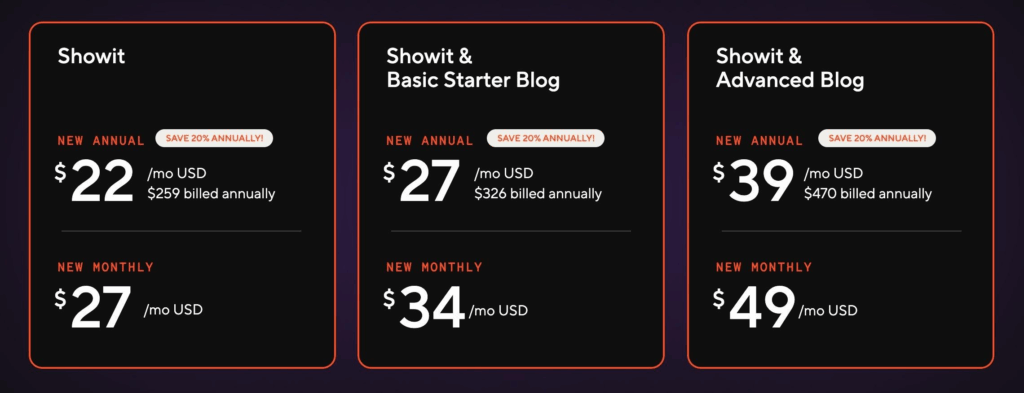
One of the biggest news releases from Showit in 2025 was the pricing update announcement heading into 2026. This change reflects ongoing investments in performance, reliability, and feature expansion. I want to preface this part of the blog by saying they haven’t changed their pricing in 16 years! That is unheard of in the tech world. If you build or maintain websites professionally for clients, or if you are a user of Showit on an active plan, this announcement comes with enough notice that you can be prepared for the change!
Here is a visual guide for the pricing update:
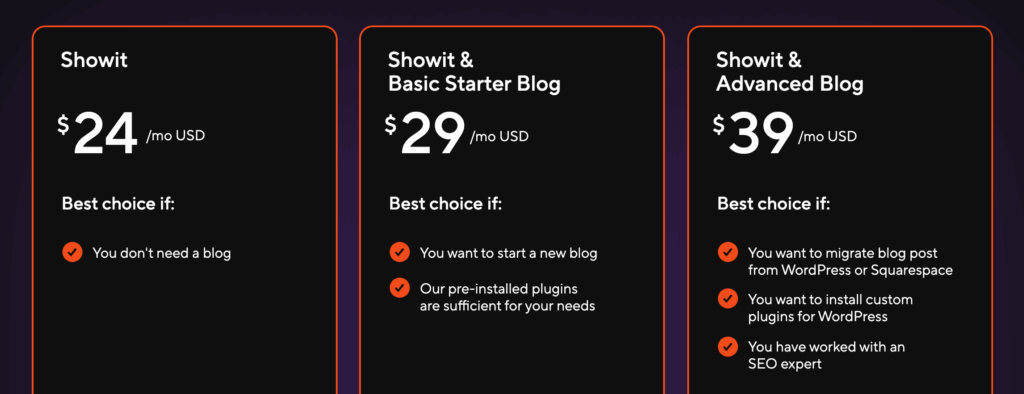
This is the current monthly pricing table (will change to the above pricing beginning Jan 15):
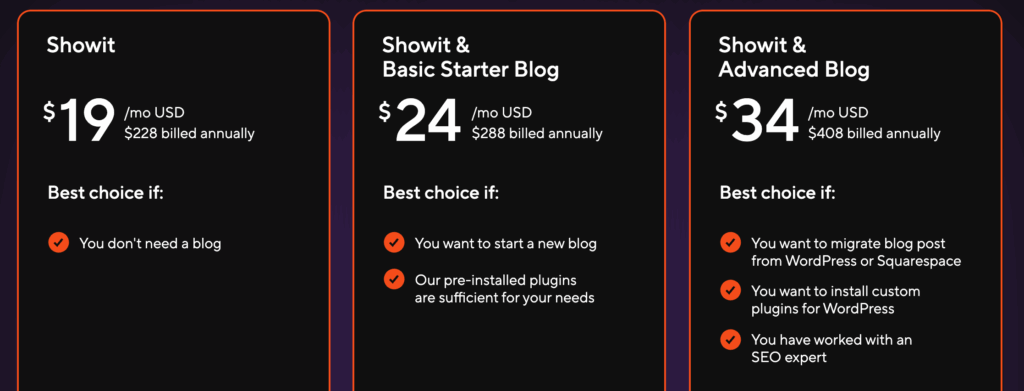
This is the current annual pricing table (will change to the new pricing beginning Jan 15):
Showit Pricing Change Dates:
- January 15: New prices will go into effect for new subscribers (If you have canceled your subscription but plan to jump back into Showit, lock in the old rates before Jan 15!)
- March 1: Existing subscribers, both monthly and annual, will renew at the new prices
Current monthly subscribers can move to an annual subscription to hold the current rate for one year by reaching out to our billing team before March 1. Read the full pricing announcement: Showit 2026 Price Change Update
Okay, so let’s talk about all the great updates that have happened in 2025 in the Showit platform!
2. Real Buttons in Showit: Better CTAs & Design Controls
Before this update, in order to have “buttons” you needed to hack together shapes and text boxes. While this design-workaround was functioning from a visual perspective, it wasn’t great for accessibility compliance and didn’t read well within the code. Screen readers (for those needing visual assistance on devices) couldn’t properly read those as buttons. And when adding several shapes and text boxes into the code caused unnecessary bloat (and confusion to search engines if you aren’t careful about changing your text tags).
Showit didn’t just stop with adding buttons to the design interface! They added a way to create buttons from existing shapes and text boxes. When you select your previously designed buttons together, you will see the “convert to button” icon (you can also find it in the right panel). When you click that, it will automatically convert it to the base-designed button. Be sure to adjust the button stylings in the right panel under “button style” or by going to Design Settings (left panel) → Buttons and adjusting your buttons there.
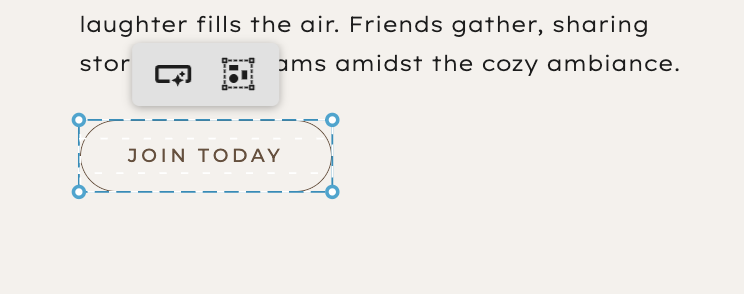
Now we have a proper button element (do you hear the angelic choir in the background, because we do!). We now have hover states, style settings, and global defaults. This is just phase 1 of the button upgrade, so be on the lookout for 2026 button upgrades!
Why This Matters
- Consistent branding across pages
- Cleaner, more intentional calls to action
- Client-friendly elements that are easy to update
Learn more: New in Showit: Buttons
Where to Find Button Elements in Showit
Design App → (Left panel) Design Settings → Buttons
or
Select a shape + text combo → Convert to Button
3. How Showit Page Folders Improve Site Organization
Type A people, where ya at! Showit now lets you organize your page list using folders. This is especially helpful for large sites, launches, hidden funnels, and complex navigation trees.
Benefits
- Keeps builder workspace clean and intentional
- Makes it easier to find and edit pages
- Helps designers scale projects without clutter
Official announcement: Organizers Celebrating Everywhere
Where to Find This in Showit
Pages Panel → Add Folder → Drag pages into folders
Showit also (very quietly) released a Design Library organization tool! Whether you are a Type A person, or have 100s of designs in your Showit library, you now have a way to keep your assets organized!
Where to Find Folders in Your Design Library in Showit
Design Library → Hover over the design and select the bubble (turning it blue) → Select/Create a Folder
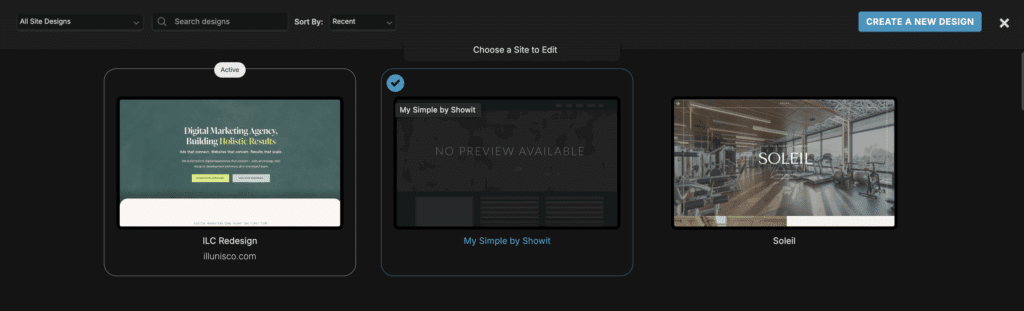
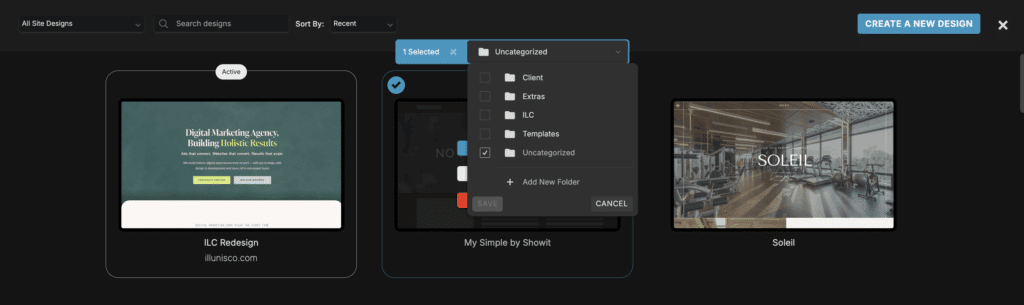
I do want to note that while this may keep your design library in showit organized, it will still show ALL your designs when you first land in the library. You will need to select the folder you want to view, if you want to see a more organized view.
4. Faster Showit Workflows: Grouping Elements & Smarter Multi-Select
Grouping was another HUGE update on Showit that we were all collectively excited for! Before, you had to select (either drag and select or Shift + individually select) each element you wanted to move. Now, your workflows are 100xs faster with grouping. Showit never just stops at this delivery. They come prepared with thoughtful updates that blow our minds every single time! With that, we also got “Multi-Select” controls. Showit released:
- Element Grouping: Combine visibility, movement, and animations across multiple elements as one unit
- Improved Multi-Select Controls: Select similar elements to change spacing, fonts, colors, and more all at once
These workflow upgrades help you build pages faster and edit client sites more efficiently, especially when updating global styles or repetitive sections.
Learn more: More Control with Multi-Select
Where to Find This in Showit
Select multiple elements → Use settings in the inspector panel
5. Image Handling, Drag-and-Drop & Design Stage Enhancements
Showit made visual content easier to manage with several updates:
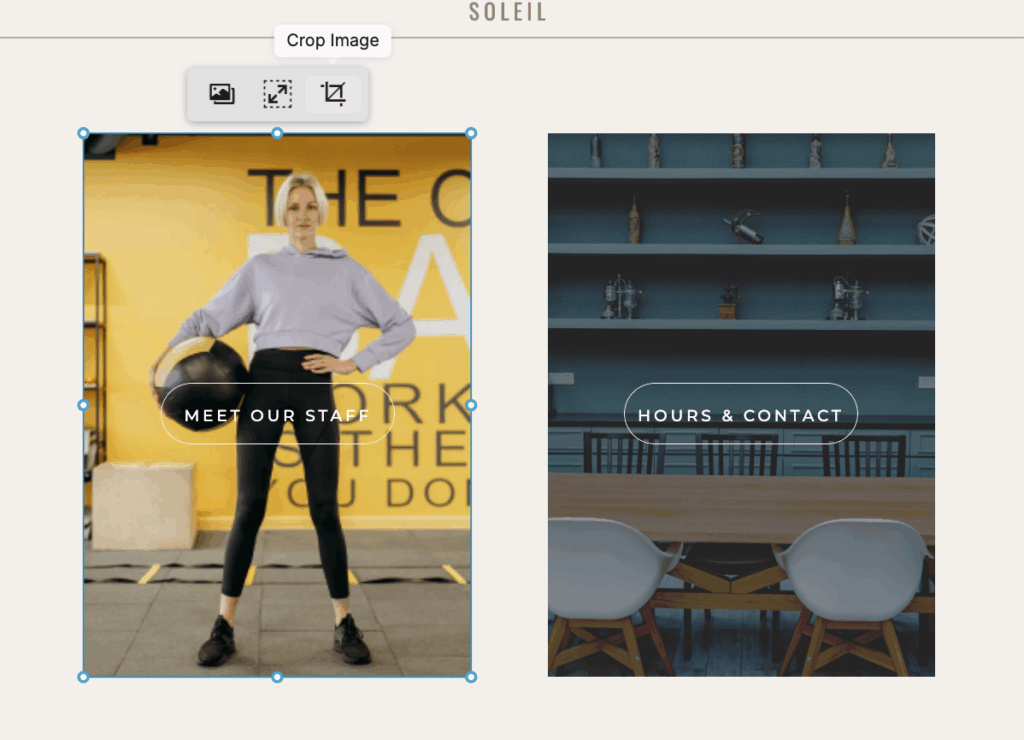
Image Cropping
You can now crop and adjust images directly inside the editor without switching tools.
Drag-and-Drop Images
This is a really great feature if you are save everything on your desktop for easy grabbing. While in the editor, you can now drop images directly into your design stage and it will upload instantly into the Media Library “Uploads” folder. While there may be future changes and updates to this feature, at this time the only way to keep your Media Library Folders organized is by uploading directing in the Library itself.
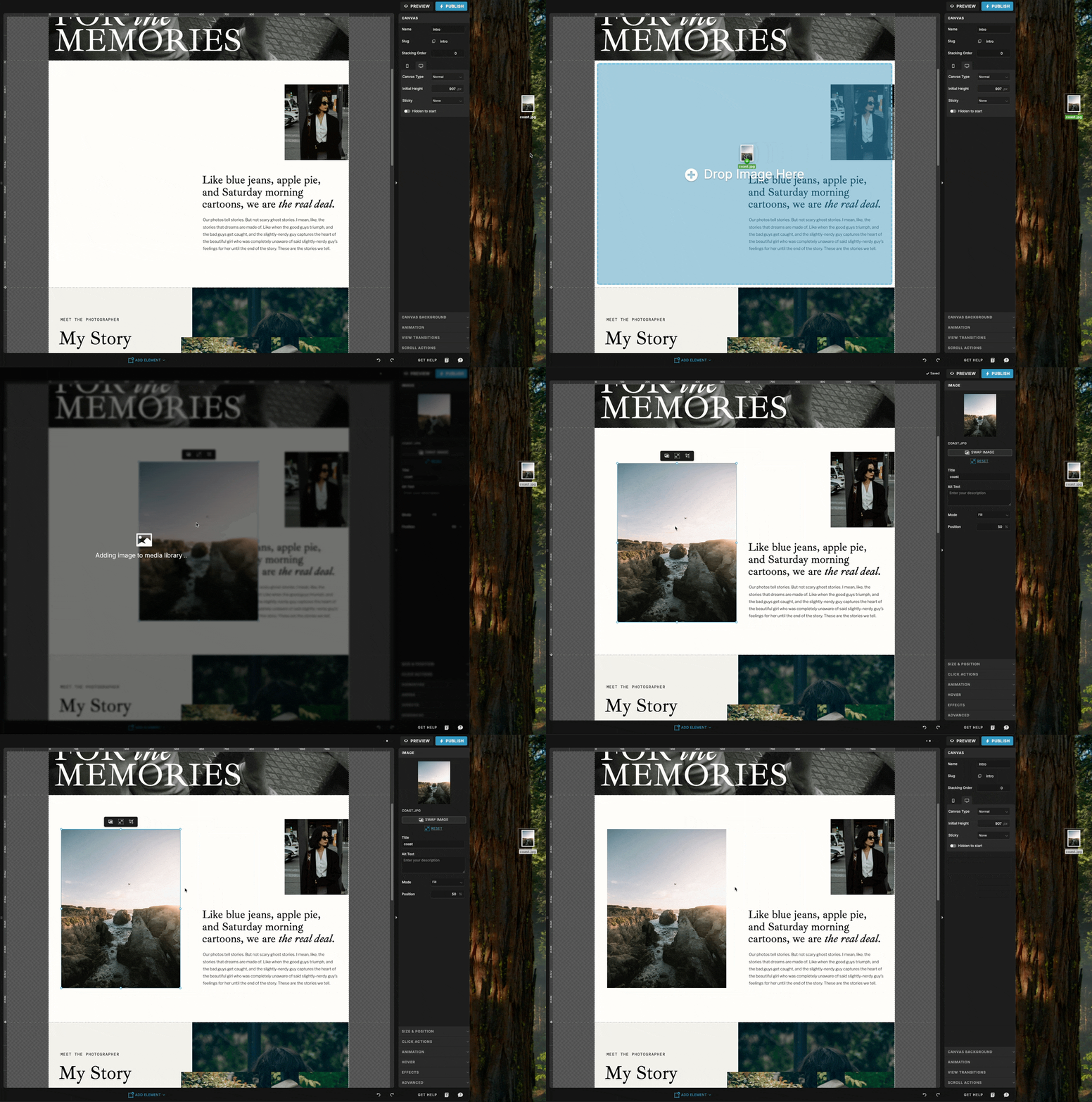
Gif Credit: Showit
Zoom & Layout Controls
Improved zoom presets and split view controls make working on both desktop and mobile designs more intuitive.
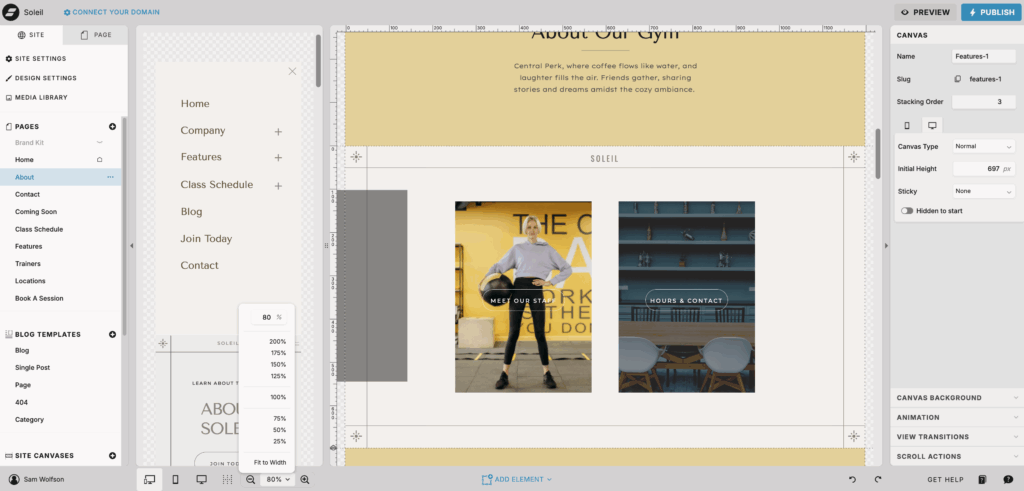
Details here: Design Stage & Gallery Improvements
Where to Find This in Showit
Design Stage → Toolbar / Gallery Settings
6. Showit on Safari: Edit Your Website Without Chrome
Mac users rejoice! Showit is now officially available on Safari (public beta). No more needing to switch to Chrome just to work on your site. Why was it suggested to work in Showit on Chrome? Because Chrome was the first browser to power the web building platform. Since this, most of the browsers have had some serious upgrades allowing for us to choose between the two powerhouse browsers!
This means:
- More flexible browser choices
- Less friction in your workflow
- A smoother experience for designers and clients alike
Where to Find This in Showit
Open Showit directly in Safari (currently operating on: v18+ — Launched May 2025)
7. New Site-Wide Integrations: Meta Pixel, GTM & Global Custom Code
I know Kat is excited about this one! Advanced integrations make all the advertisers and strategists on our team happy! Tracking site performance and conversions is now easier than ever. In 2025, Showit introduced site-wide integration controls for:
- Meta Pixel
- Google Tag Manager
- Global custom code
These new integration settings let you manage tracking once, at the global level, instead of adding scripts to every page manually. This helps reduce errors, improve reporting accuracy, and (biggest benefit in our opinion for our clients) save time.
Official announcement: New Integrations & Global Custom Code
Where to Find This in Showit
Site Settings → Integrations / Global Code
8. Enhanced Interface: Toolbar, Font Controls & User Experience
Showit also refined its editing interface:
- A condensed “Add Element” toolbar makes finding elements faster (used to be the 3 sub-menus)
- A redesigned font panel with search, filtering, and preview features (you can finally see Google Fonts without having to add them to your preview!)
- Improved color palette controls for better brand consistency (moved from the top to the left for a better user experience)
These UI improvements make Showit more intuitive, so you spend less time hunting for tools and more time designing.
9. Light & Dark Mode + Density Settings in the Showit Editor
User preferences now include Light and Dark mode plus density controls in the Showit editor. These updates don’t affect your live site; they shape your workflow environment! This gives your view of the Showit design stage a more comfortable and personalized feel.
Where to Find This in Showit
Account Settings → Preferences → Mode & Density
How These 2025 Features Impact Showit SEO & Usability
Showit sites have always supported SEO optimization including:
- Custom page titles and meta descriptions
- Image alt text editing
- Responsive, mobile-optimized layouts
With the 2025 updates:
- Better content editing workflows help you iterate faster (improving content freshness)
- Safari support expands access for more users
- Global tracking tools enhance analytics, making it easier to measure SEO performance and conversions
- Refined code (buttons, specifically) to help search engines and screen readers
These enhancements don’t change the fundamentals of SEO with Showit, but they support better SEO outcomes by making your site easier to update, manage, and track.
Final Thoughts: Why 2025 Was a Big Year for Showit
2025 wasn’t just a year of updates… It was a year of platform strengthening.
These changes weren’t cosmetic. They:
- Improve user experience
- Boost workflow efficiency
- Expand integration and tracking capabilities
- Support design, maintenance, and SEO growth
Whether you’re a designer or a small business owner using Showit for your brand, understanding these updates helps you make the most of your site, and stay ahead of trends in website design and search.
If you have questions about how any of these updates apply to your Showit site, feel free to reach out! We’re always happy to help.
